How to Connect to a Remote Database Using TablePlus over SSH
I use TablePlus to access remote database from local machine. Here are the steps that I usually follow to connect to my remote database using TablePlus over SSH.
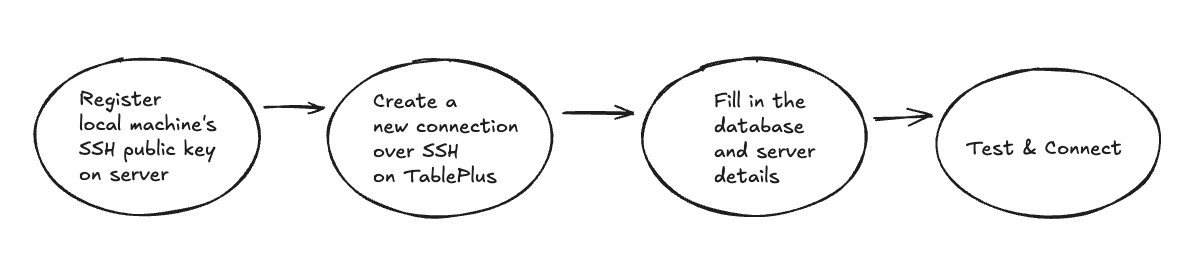
Register SSH Key
Before accessing the remote database from local machine, make sure you have already registered your local machine’s SSH public key on the server.
Open TablePlus
Open TablePlus and click the + (plus) button on the top left corner to create a new connection.
Select Preferred Database
I use MySQL for this tutorial. So, select MySQL and click the Create button.
Select Connection Type
The MySQL Connection form will appear. Click the Over SSH button because we want to connect to the remote database over SSH.
Fill in the Connection Details
This is the most important step and can also be confusing if you are new to connecting to a remote database over SSH. Below is an example of the connection details over SSH.
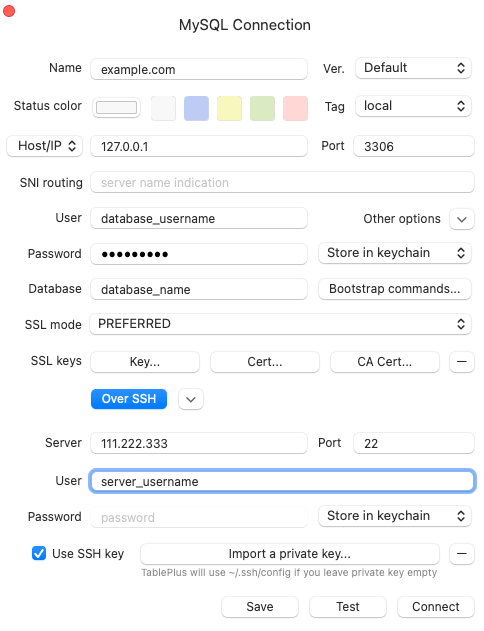
There are two important sections in the form, one for database details and the another one for server details.
Database Details
| Field | Value / Description |
|---|---|
| Name | SSH Connection Name |
| Host | 127.0.0.1 |
| Port | Usually 3306 |
| User | Fill in the database username that you use to connect your application to the database |
| Password | Fill in the database password |
| Database | Fill in the database name |
Server Details
| Field | Value / Description |
|---|---|
| Server | Fill in the server IP address |
| Port | Usually 22 |
| User | Fill in the server username that you use to connect to the server |
| Password | Leave it empty if you are using a private key |
| SSH Key | Check the box for "Use SSH Key" if you have a private key |
Test & Connect
Click the Test button to test the connection. Once everything is correct, click the Connect button.